Alterkom Command
All of your team’s technical knowledge in one place.
Organise commands, scripts, AI prompts and admin procedures. Alterkom Command helps IT teams find proven solutions faster, document work and build a shared technical knowledge base.
What is Alterkom Command?
In many IT teams, commands and procedures live in text files, documents, messages and private notes. Alterkom Command (Command Vault) organises that knowledge in one repository — a command and notes base for the team.
Main uses:
- Storing administrative commands.
- Organising scripts (e.g. PowerShell, Bash).
- A library of AI prompts and instructions.
- Documenting procedures and projects.
- Search by title, content, description and tags.
- Building shared team knowledge instead of tribal knowledge.
Command is a knowledge repository — it does not execute commands automatically. You copy content into your work environment.
Access
Signing in to Command Vault
Sign in via email or “Continue with Microsoft”. Team identity is based on user accounts — not a shared browser password like a simple clipboard.
Library
Command and script library
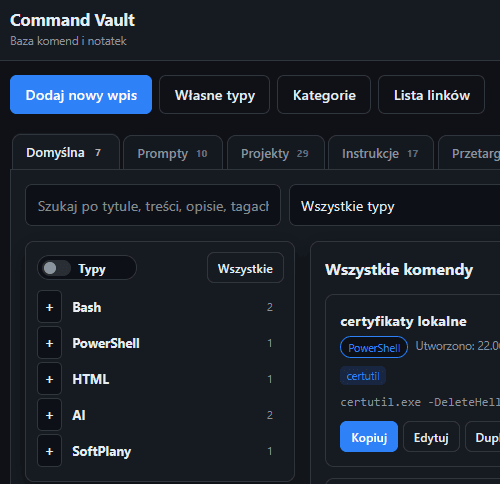
Main Command Vault view: category tabs (e.g. Default, Prompts, Projects, Instructions), type list (Bash, PowerShell, HTML, AI…), search by title/content/description/tags, and entry cards with copy, edit and duplicate. Example uses: PowerShell and Windows Server, Bash/Linux, diagnostics, network configs, script fragments — without automatic execution.
Organisation
Categories and knowledge organisation
Set tab visibility and order. “Default” is always first; you can create your own categories (e.g. Prompts, Projects, Instructions). Structures like Windows → PowerShell or Linux → Docker are examples of team organisation — not a factory catalog.
AI
AI prompt repository and custom types
The Prompts tab and custom types (e.g. AI / markdown) keep proven prompts next to commands: log analysis, diagnostics, script generation, documentation work. Command is not an AI agent — it stores content you reuse. Global types are set by admins; personal types are visible only to you.
Procedures and operational documentation
Tabs such as Instructions or Projects keep longer write-ups next to commands. Typical IT documentation examples:
- Starting and stopping services.
- Recovery after incidents and diagnostics.
- Server updates and backup procedures.
- Standard admin tasks repeated across the team.
Shared documentation reduces knowledge loss during turnover and shortens onboarding.
An administrator’s day-to-day workflow
Example flow:
- Open Alterkom Command and sign in (email or Microsoft).
- Pick a category or filter by type (e.g. PowerShell, Bash).
- Search for a procedure or command by title, tags or content.
- Copy the entry into a terminal or target tool.
- If needed, share content via a one-time link — no recipient login.
Command speeds up access to proven solutions; execution stays outside the app.
Sharing
Share a command via link
A public link shows only the command content — no login and no metadata. A one-time link is invalidated after the first open. Useful in support: share content without opening the whole vault.
Control
Share link list
See all links you created — active, used and invalidated. Copy, invalidate or delete entries. Full control over what remains publicly reachable.
Security
Devices and sessions
View active logins: browser, OS, device type, login and last-activity time. Log out a selected device, other devices or all at once — when leaving a shared workstation or spotting an unknown session.
Continuity
Data backup
Portable export of entries, types, categories and attachments. Import always merges into the current account — nothing is overwritten. Supports moving knowledge between accounts and recovery after a workstation failure.
Features
Key capabilities
Biblioteka komend i skryptów
Wpisy z typem (np. PowerShell, Bash), tagami, kopiowaniem, edycją i duplikacją.
Kategorie i zakładki
Widoczność i kolejność kategorii; własne kategorie obok „Domyślnej”.
Własne typy
Typy globalne ustawia administrator; własne typy widoczne tylko dla Ciebie (np. markdown).
Wyszukiwanie
Szukaj po tytule, treści, opisie i tagach; filtruj po typie.
Udostępnianie linkiem
Publiczny link pokazuje treść komendy bez logowania i metadanych; opcja linku jednorazowego.
Sesje i backup
Podgląd urządzeń/sesji z wylogowaniem oraz eksport/import backupu (MERGE).
Use cases
Business use cases
Administratorzy IT
Szybki dostęp do komend, konfiguracji i procedur w jednym miejscu.
Zespoły DevOps
Wspólna biblioteka skryptów i instrukcji między projektami.
Helpdesk
Uporządkowane procedury i komendy przy rozwiązywaniu zgłoszeń.
Cyberbezpieczeństwo
Repozytorium procedur i poleceń diagnostycznych — bez traktowania Command jako sejfu haseł.
Benefits
Business benefits
Standaryzacja pracy zespołów
Jedna baza sprawdzonych komend i procedur.
Ochrona przed utratą wiedzy
Wiedza zostaje w repozytorium, nie tylko w prywatnych notatkach.
Szybsze rozwiązywanie problemów
Wyszukiwanie i kopiowanie zamiast szukania po mailach.
Łatwiejsze wdrażanie nowych osób
Onboarding na gotowej bibliotece zespołu.
Ponowne wykorzystywanie procedur
Duplikuj i aktualizuj wpisy zamiast pisać od zera.
Technology
Architecture
Architecture
Command Vault web app: email or Microsoft sign-in, entry library with types/tags/categories, search, public link sharing (including one-time), device session management and backup export/import (MERGE). Hosted on customer infrastructure. Detailed role permissions and retention policy — defined during deployment.
Integrations
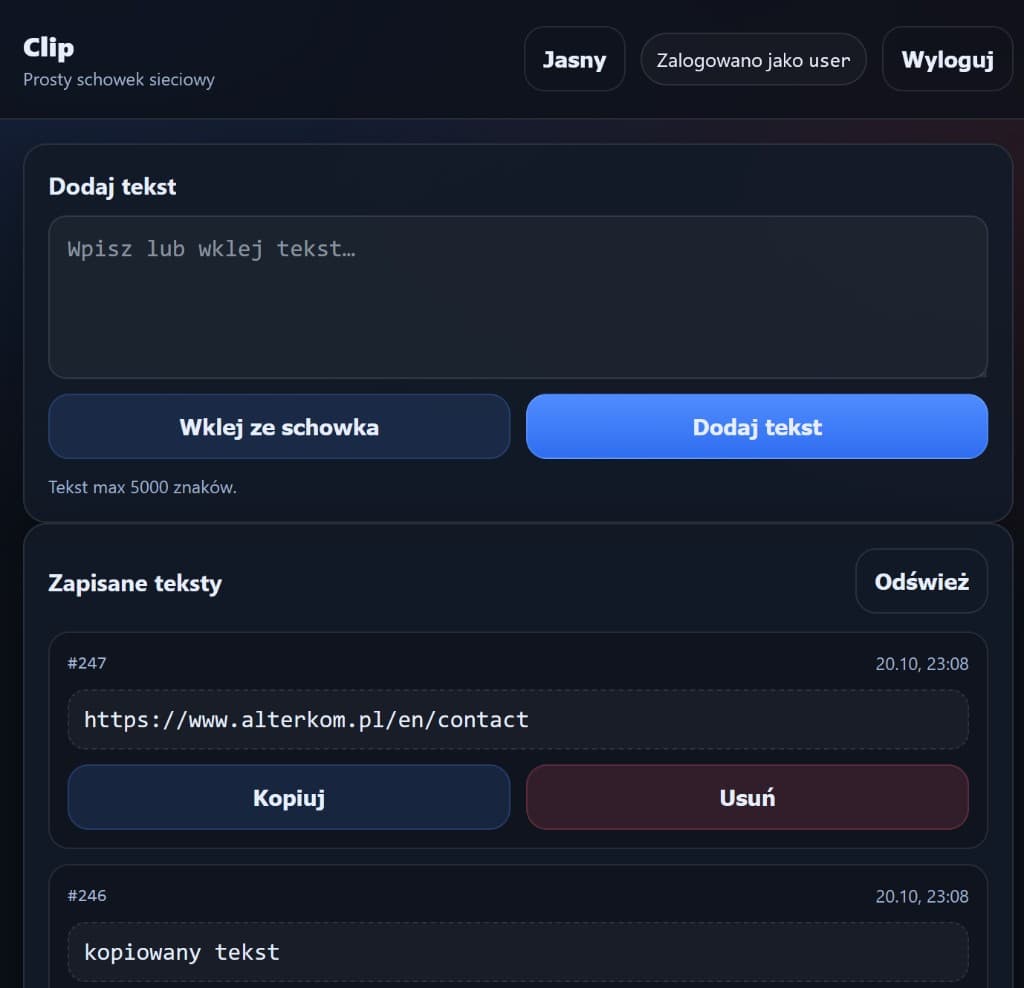
Complements Alterkom Clip (short content handoff) and the operations portal / automation — per deployment map. Command does not replace Clip or tools that execute scripts.
Requirements
Depend on user count, library size and hosting model (on-premise / per offer).
Delivery
Deployment models
Questions
FAQ
Czy Command przechowuje sekrety i hasła?+
Przeznaczony jest do wiedzy operacyjnej, komend i instrukcji — nie jest menedżerem haseł. Politykę przechowywania sekretów ustalamy osobno; nie zakładamy domyślnego vaultu haseł.
Czy Command wykonuje komendy automatycznie?+
Nie. To repozytorium wiedzy: przeglądasz, wyszukujesz i kopiujesz treść do swojego środowiska.
Jak się loguję?+
Dostępne jest logowanie przez email oraz kontynuacja kontem Microsoft (SSO). Szczegóły tożsamości zależą od wdrożenia.
Jak działa udostępnianie?+
Możesz wygenerować publiczny link pokazujący wyłącznie treść komendy — bez logowania i bez metadanych. Link może być jednorazowy (unieważniany po pierwszym otwarciu). Listą linków zarządzasz w panelu (aktywne / wykorzystane / unieważnione).
Czy mogę zrobić backup?+
Tak. Eksport obejmuje wpisy, typy, kategorie i załączniki. Import dodaje dane do bieżącego konta w trybie MERGE — nic nie nadpisuje.
Jak kontrolować sesje?+
W „Urządzenia i sesje” widać aktywne logowania; możesz wylogować wybrane, inne lub wszystkie urządzenia.
More
Related solutions
Ready to see it in action?
Tell us about your use case — we will propose a tailored presentation.
Book a Command presentation